Laptops
 After-dinner conversations
 All-in-one computers
 Monitors
 Mobiles
 Tablets
 Apple Zone
 Peripherals and Accessories
 Networks and cables






Laptop Battery Replacement
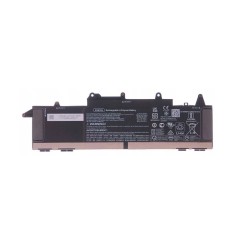
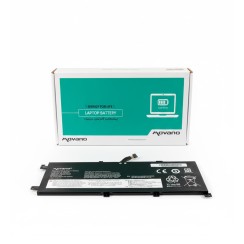
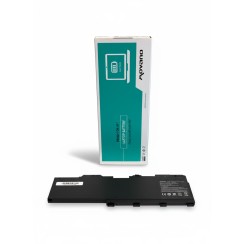
Restore battery life to your laptop with our high-quality refurbished batteries. Find compatible models for major brands like HP , Apple , Lenovo , and more. We offer laptop batteries that are tested and guaranteed for optimal performance and extended lifespan.
Mostrando 132 productos



- New

- New
- New


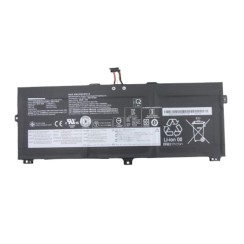
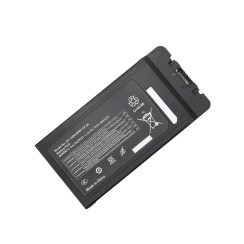
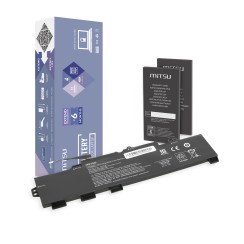

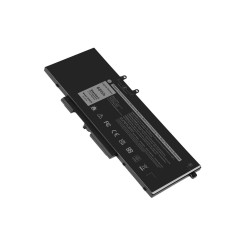


Dudas frecuentes
Understanding these three categories is essential for buying the right laptop battery for your needs and budget. Each has its own advantages:
- Original Equipment Manufacturer (OEM) Battery: This is manufactured by the same brand as your laptop ( HP , Dell , Apple , etc.). It offers a 100% compatibility and quality guarantee , as it is identical to the one that came with the device. Its main drawback is that it is usually very expensive and often difficult to find for older models.
- Compatible Battery: This is a new battery manufactured by a third-party company. A high-quality compatible battery will use lithium-ion cells from reputable manufacturers (such as LG or Samsung ) and reliable protection circuitry, offering performance very similar to the original at a significantly lower cost. The risk lies with very low-cost compatible batteries, which may use poor-quality cells and lack adequate protection.
- Refurbished Battery: This is a smart and sustainable option. It's a used original battery that has been professionally tested and certified . During the process, its 'health' or maximum remaining charge capacity is measured. Only those that meet a strict quality threshold are sold, guaranteeing functional and useful runtime. It's the best way to get the quality and safety of original circuitry at a very affordable price .
In summary, the original offers maximum reliability at a high cost, the quality compatible offers a great balance, and the refurbished gives you the reliability of original hardware at a very economical price. Choosing the right laptop should be an investment that lasts for many years.
Finding the right replacement battery is easier than it seems, but it requires precision to avoid compatibility issues. The safest and most recommended way is to physically examine your current battery . To do this, turn off and unplug your laptop. If it's an external battery, simply remove it. If it's internal, you'll need to remove the bottom cover of the laptop (usually held in place by a few screws). Once you have the battery in view, look for the 'Part Number', 'Model Number', or 'P/N' on its label. This is a unique alphanumeric code that identifies that exact battery model (for example, 'HSTNN-DB75' on an HP battery or 'A1493' on a MacBook). Write down this code and use it for your search. This method is much more reliable than searching by laptop model alone , as sometimes the same computer model can have revisions that use slightly different batteries. If you no longer have the old battery, the second option is to search by the exact and complete model of your laptop, which is usually printed on a label on the bottom of the laptop. However, verifying the battery part number will always be the ultimate guarantee that you are buying the correct one.
The difficulty of changing a laptop battery has evolved with the design of the devices, but in most cases it is a perfectly feasible task for the average user. We can distinguish two main scenarios:
- Laptops with removable (external) batteries: This is the case with many older models. The process is incredibly simple. On the bottom of the laptop, you'll find one or two safety latches. Simply slide them open, the old battery will be released, and you can fit the new one in its place. It's an operation that takes no more than 30 seconds and requires no tools.
- Laptops with internal batteries: This is standard in all modern, thin laptops to optimize space. While it requires a bit more work, it's still a very affordable process. You'll need a precision screwdriver to remove the screws from the bottom cover . Once opened, the battery will be a large, visible component. It's usually connected to the motherboard via a small connector that you carefully unplug and secured to the chassis with a few screws. Simply unscrew the old battery, disconnect it, and reverse the process with the new one. With the help of a video tutorial for your specific model, it's a repair that most people can complete in 15-20 minutes .
In both cases, it's one of the most impactful and satisfying improvements you can make to your laptop battery .
Once you've installed your new laptop battery , following good usage practices can significantly extend its lifespan and maintain its charging capacity for longer. Modern lithium-ion batteries no longer suffer from the 'memory effect' of older batteries, but they are sensitive to certain factors:
- Avoid complete discharges (0%): Lithium batteries don't like to be completely discharged. Partial charges are much healthier for them. Try connecting the charger when the battery is around 20-30% and don't wait for the device to shut down.
- Don't keep it at 100% all the time: Leaving your laptop plugged in constantly with the battery at 100% also puts stress on the cells. If you're going to use your laptop like a desktop computer for extended periods, many manufacturers offer software that allows you to limit the maximum charge to 80%, which is ideal for battery longevity. Otherwise, a good practice is to unplug it occasionally and let it drop to 40-50% before recharging it.
- Control the temperature: Heat is a battery's biggest enemy. Avoid using your laptop on soft surfaces like beds or cushions that can block the ventilation grilles. Make sure your laptop's cooling system is clean and working properly.
By following these simple tips, you'll ensure that the price of your laptop battery is an investment that will last you for many years.
Relacionados con Laptop Battery Replacement
Opiniones de nuestros usuarios
Top ventas Laptop Battery Replacement