
 Laptops
 Desktop computers
 Ordenadores All-in-One
 Computer bundles
 Monitors
 Refurbished mobile phones
 Tablets
 Zone Apple
 Peripherals and Accessories
 Networks and Cables











DVI
Discover our DVI category of refurbished technology, where quality and sustainability come together. We offer affordable , like-new devices, perfect for those who want performance without breaking the bank. Every product has been thoroughly inspected to guarantee an unparalleled user experience. Transform the way you enjoy technology with us!
Showing 7 products




Frequently asked questions
The difference is not only in shape, but also in the signal they carry , and choosing the wrong one will cause it not to work.
- DVI-D (Digital): This is the most common type today. As its name suggests, it carries only a digital video signal . It is the standard for connecting modern graphics cards to digital monitors. Within DVI-D, there are two variants:
- Single Link: Supports resolutions up to 1920x1200 at 60Hz.
- Dual Link: It has more pins and twice the bandwidth, allowing it to reach higher resolutions, such as 2560x1600 at 60Hz. This is crucial for high-resolution monitors or for 120/144Hz refresh rates at 1080p.
- DVI-A (Analog): This type is very rare and obsolete. It carries only an analog video signal , similar to VGA. It was used to adapt DVI cards to older CRT monitors.
- DVI-I (Integrated): This is the most versatile connector. The 'I' stands for integrated, because it carries both a digital and an analog signal in the same connector . This makes it compatible with digital monitors (using the DVI-D portion) and with older analog monitors via a simple passive DVI-to-VGA adapter.
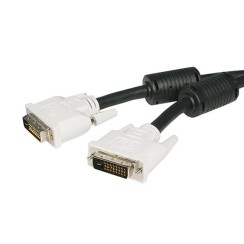
The key to compatibility is to look at the pins on the male DVI connector . A DVI-I has all the pins, while a DVI-D is missing the group of four pins surrounding the flat tab.
Choosing between a single-link and a dual-link DVI-D cable is crucial to getting the most out of your monitor. Although the connectors look very similar, their data transmission capacity is very different.
- A single-link DVI-D cable has sufficient bandwidth for most standard monitors. It's the perfect choice if your monitor has a resolution up to 1920x1200 at 60Hz . This covers the vast majority of Full HD (1920x1080) displays on the market. For office work, web browsing, and standard video playback, it's all you need.
- A Dual Link DVI-D cable, however, is essential if your monitor exceeds these specifications . Having an additional set of pins doubles the bandwidth, allowing it to handle much higher resolutions or refresh rates. You'll need a Dual Link cable in the following cases:
- If your monitor has a resolution higher than 1920x1200 , such as 2560x1440 (QHD) or 2560x1600.
- If you have a gaming monitor with a 120Hz or 144Hz refresh rate at 1080p resolution, a single-link cable doesn't have the bandwidth to support that refresh rate and will limit your monitor to 60Hz.
To ensure you're using a Dual Link cable, check that all pins on the center connector are present. Using the wrong cable is the most common reason why you might not be able to select the native resolution or refresh rate of a high-performance monitor.
This is a very common question when trying to connect modern and older devices. Regarding direction, the good news is that, in most cases, a DVI-to-HDMI cable or adapter is bidirectional . This is possible because both DVI-D and HDMI use the same digital video signal protocol (TMDS). Therefore, a single passive cable can connect:
- A DVI source (such as a PC's graphics card) to an HDMI display (such as a TV).
- An HDMI source (such as a video game console or Blu-ray player) to a DVI display (such as a computer monitor).
However, there is a very important limitation: the DVI standard does not carry an audio signal . Therefore, when you use a DVI-to-HDMI cable , only the video signal will be transmitted. If you connect, for example, your PlayStation to a monitor with a DVI input, you will see the image perfectly, but you won't hear anything. To get sound, you will need to use a separate audio connection, such as a 3.5mm audio cable or an optical audio output, connected from the source to external speakers or to the monitor's own audio input (if it has one). This is the main functional difference between the two connectors.
Yes, it's possible, but it depends critically on the type of DVI connector your graphics card has . This is where the difference between DVI-D and DVI-I becomes fundamental.
- If your graphics card has an integrated DVI-I port , then the answer is yes, and it's very simple. This port, as we saw, is capable of outputting a native analog signal. All you need is a passive DVI-to-VGA adapter , which is a small and inexpensive connector that simply redirects the analog pins of the DVI port to the VGA connector format. This was a very common solution to ensure backward compatibility with older monitors.
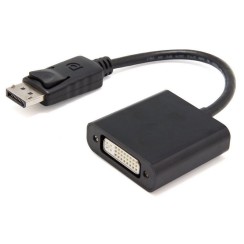
- If your graphics card has a DVI-D (Digital) port , then the answer is no, you can't use a passive adapter. This port only outputs a digital signal , and a VGA monitor can only understand an analog signal. In this case, for the connection to work, you would need an active DVI-D to VGA converter . This device isn't a simple adapter, but a small box containing an electronic chip (a DAC, or Digital-to-Analog Converter) that reads the digital signal, processes it, and transforms it into an analog signal that the VGA monitor can understand. These converters are more expensive and sometimes require an external power supply.
Therefore, before buying a DVI adapter for your old monitor, check your PC's port: if it's missing the 4 pins around the flat tab, it's DVI-D and you'll need an active converter.
Related
Reviews from our users
Top sellers DVI