
 Laptops
 Desktop computers
 Ordenadores All-in-One
 Computer bundles
 Monitors
 Refurbished mobile phones
 Tablets
 Zone Apple
 Peripherals and Accessories
 Networks and Cables












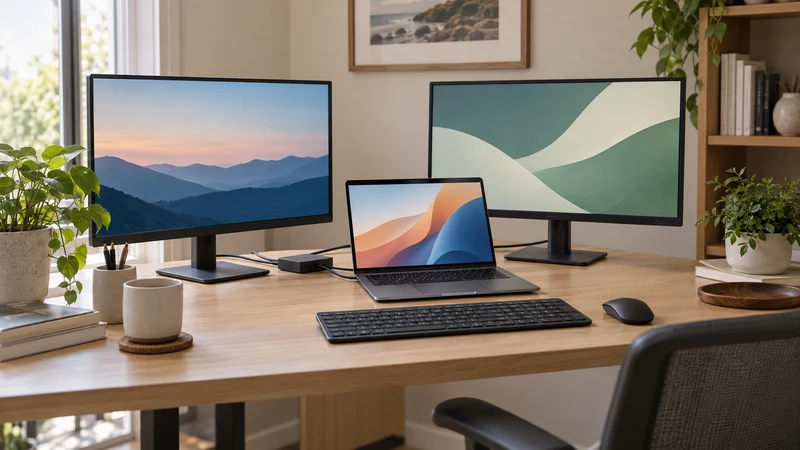
Keeping a document on one screen and a video call or spreadsheet on another can be more comfortable than constantly switching windows. To connect two external monitors to a laptop, check more than the shape of its ports: the graphics hardware, dock and intended resolutions matter too.
This guide focuses on extending the desktop in Windows 11. If you are still choosing monitors for your workspace, first work out how you will connect them. That avoids buying screens and adapters your laptop cannot support together.
Gather these details before buying cables
Note the exact laptop model and check its specifications or manual. Find out how many external displays it supports and through which connections. Include the built-in screen when checking the total number of simultaneous displays if you intend to keep it on.
For each monitor, note its inputs and the resolution and refresh rate you want. Two Full HD screens and two high-refresh-rate 4K screens place different demands on the connection. The whole chain must support the setup: laptop, port, dock or adapter, cable and display.
| Item | What to check |
|---|---|
| Laptop | Model, graphics hardware and simultaneous display limit |
| Ports | HDMI, DisplayPort or USB-C with documented video output |
| Monitors | Inputs and desired resolution and refresh rate |
| Dock | Laptop compatibility and the exact display combination |
| Cables | Connectors, direction for adapters and supported capabilities |
Choose a connection method
Two laptop video outputs. If the manufacturer confirms they work simultaneously, connect one screen over HDMI and another through a second compatible output. Test each monitor separately before connecting both.
A docking station. This can be convenient if you connect and disconnect your laptop daily. When comparing docks and docking stations, check which simultaneous display combinations each model supports with your laptop. Two HDMI sockets do not guarantee two independent desktops on every computer.
Daisy chaining. Some monitors pass video to the next screen using DisplayPort MST. The computer, operating system and screens must support it, and the first monitor needs a suitable output. Do not assume two HDMI monitors can be chained together. Dell explains the options in its multiple-monitor setup guide.
USB-C and HDMI splitters: two common misunderstandings
USB-C describes the connector, but not every USB-C connection carries video. For a dock using native video, look for documented support such as DisplayPort Alt Mode or Thunderbolt. Charging power is a separate capability to check. DisplayPort’s USB-C documentation explains this video mode.
A conventional HDMI splitter repeats the signal on two screens; it does not create two independent desktops. Extending requires a compatible solution providing independent outputs. Some docks use USB video technologies that require their own software: check the requirements rather than treating them as passive adapters.
For a Mac, check the specifications of your exact model and dock. Do not assume a Windows MST setup works the same way in macOS. Our HDMI and DisplayPort comparison also helps distinguish the connectors.
Set up the extended desktop in Windows 11
Power both monitors, select the correct input on each and connect the cables to the laptop or dock.
- Press Windows + P and select Extend.
- Open Settings → System → Display and use Identify to recognise the screens.
- Drag their representations to match their physical positions on the desk.
- Select each display and review resolution and scaling. Start with the recommended values.
- Move a window between screens and check that the pointer crosses the expected edge.
Microsoft covers the connection checks and Extend mode in its external monitor support guide.
If only one screen works, test each part
Check each monitor separately using a known working cable, then connect both. If each works alone but not together, review the laptop’s display limit and the dock’s supported resolution combinations.
If the picture is duplicated, check Windows’ display mode and whether you are using a splitter instead of an extended-desktop solution. If a screen has no signal, check its selected input and try another compatible cable. Install drivers or firmware only from the relevant manufacturer and follow its instructions.
Avoid buying adapters at random. Record the laptop, dock and monitor models and take a photograph of the connections. Those details make an incompatibility easier to identify.
Checklist before choosing a dock or monitors
- The laptop supports the number of screens I need.
- I have checked video output on the intended port.
- The dock supports my simultaneous resolutions and refresh rates.
- I have suitable cables for every input.
- I understand the difference between duplicating and extending.
For help with a particular combination, contact Ecoportatil with the model details. Choosing accessories from those specifications avoids turning a straightforward purchase into a chain of adapters.


