 Laptops
 Desktop computers
 Ordenadores All-in-One
 Computer bundles
 Monitors
 Refurbished mobile phones
 Tablets
 Zone Apple
 Peripherals and Accessories
 Networks and Cables












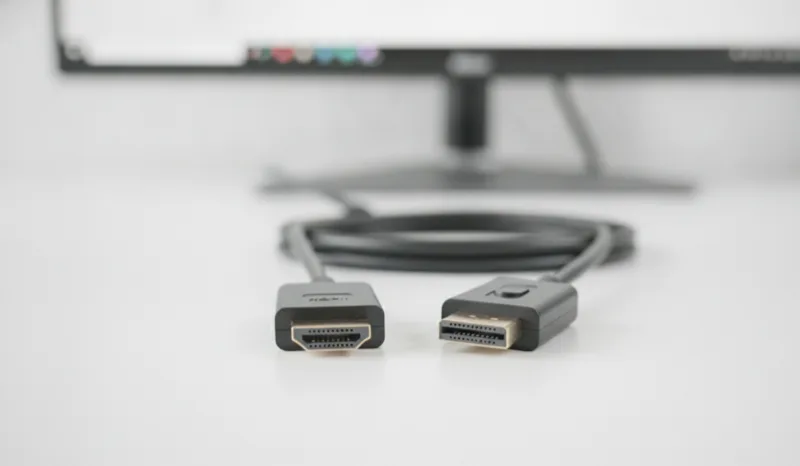
The practical difference between HDMI and DisplayPort is simple: HDMI is the living-room standard (televisions, consoles, soundbars) and DisplayPort is the desktop standard (PC monitors, especially gaming and multi-monitor setups). To connect a laptop to a TV, use HDMI; for a high-refresh-rate monitor, DisplayPort is usually the better choice.
Both connectors do the same job —carrying digital video and audio through a single cable— and for most everyday uses the result is identical. But when you're building a setup with an external monitor, gaming above 60 Hz or working with several screens, choosing well makes a real difference. Let's look at what the difference between HDMI and DisplayPort actually is and which one suits each situation.
What HDMI is and what it's used for
HDMI (High-Definition Multimedia Interface) was born in 2003 with home cinema in mind and is now the most widespread video connector in the world: it's on televisions, consoles, media players, projectors and virtually every laptop. Its most common versions today are:
- HDMI 1.4: up to 4K at 30 Hz or Full HD at 120 Hz. This is what you'll find on devices that are a few years old.
- HDMI 2.0: up to 4K at 60 Hz. The standard on most current TVs and monitors.
- HDMI 2.1: up to 4K at 120 Hz or 8K at 60 Hz, with VRR (variable refresh rate) and eARC. Found on recent televisions and latest-generation consoles.
Among its exclusive strengths are ARC/eARC (sending the TV's sound to a soundbar through the same cable) and CEC (controlling several devices with a single remote) — very living-room-oriented features that DisplayPort doesn't offer.
What DisplayPort is and what it's used for
DisplayPort appeared in 2006, driven by computer manufacturers as a replacement for VGA and DVI. You can tell it apart from HDMI at a glance because the connector has one chamfered corner instead of two. It's rare on televisions, but it dominates on PC monitors and graphics cards. Its most common versions:
- DisplayPort 1.2: up to 4K at 60 Hz. Very common on office monitors.
- DisplayPort 1.4: up to 4K at 120 Hz or 8K at 60 Hz with DSC compression. The current standard on gaming monitors.
- DisplayPort 2.1: the newest, with enough bandwidth for 4K at 240 Hz and beyond.
Its star feature is MST (Multi-Stream Transport): driving several daisy-chained monitors from a single output, something HDMI can't do. On top of that, the USB-C port on modern laptops carries video using DisplayPort itself (DP Alt Mode), so you're probably using it already without knowing.
Differences between HDMI and DisplayPort
This table sums up the comparison where it really matters:
| Aspect | HDMI | DisplayPort |
|---|---|---|
| Where you'll find it | TVs, consoles, projectors, laptops | PC monitors and graphics cards |
| Typical maximum | 4K at 60 Hz (2.0) / 4K at 120 Hz (2.1) | 4K at 120 Hz (1.4) / 4K at 240 Hz (2.1) |
| Multiple monitors per cable | No | Yes, with MST (daisy-chaining) |
| Audio return channel (ARC/eARC) | Yes | No |
| Adaptive sync | VRR from HDMI 2.1; FreeSync on some 2.0 | FreeSync and G-Sync since DP 1.2a |
| Cable length | Up to 10-15 m without issues | Recommended up to 3-5 m |
| Connector lock | No | Yes, a locking tab on many cables |
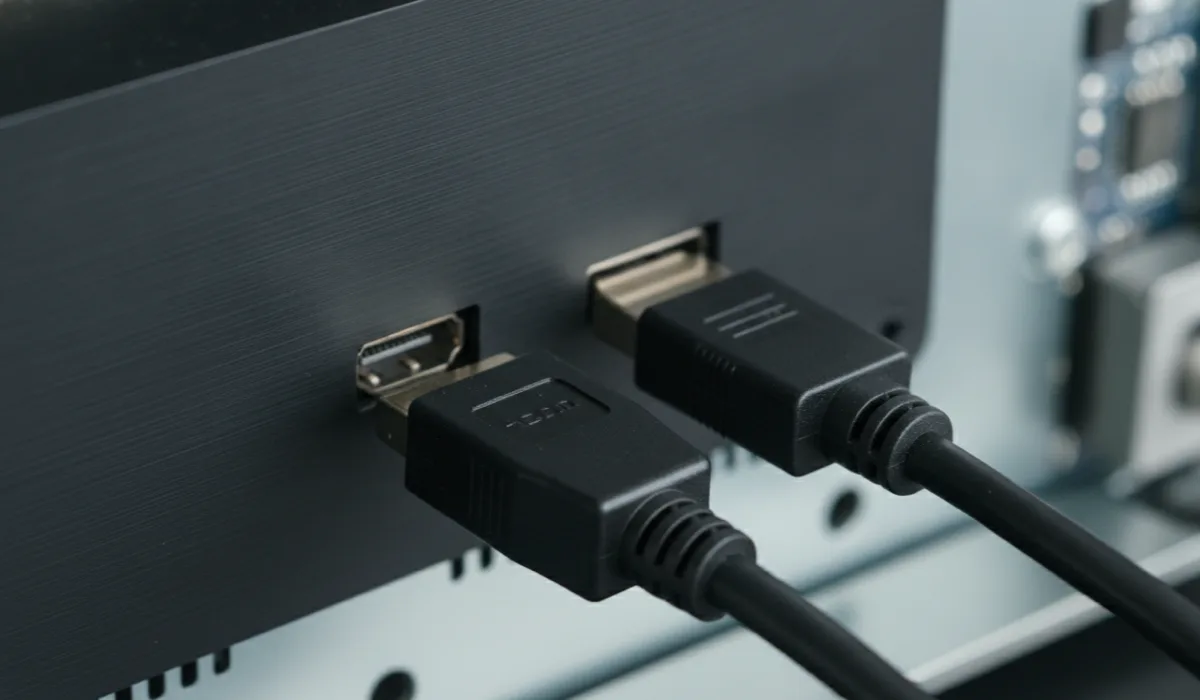
HDMI or DisplayPort? Which to choose depending on use
To connect a laptop to a TV: HDMI
No debate here, not least because televisions don't come with DisplayPort. A standard HDMI cable gives you 4K at 60 Hz with audio included — more than enough for films and presentations. You'll find the step-by-step in our guide on connecting your laptop to the television.
For gaming on a monitor: DisplayPort
If your monitor goes beyond 60 Hz (144, 165, 240 Hz...), DisplayPort is the safe bet: any DP 1.4 cable drives high refresh rates with FreeSync or G-Sync, without the version limitations HDMI drags along. With HDMI 2.0, many gaming monitors cap the refresh rate you can actually get.
For working with several screens: DisplayPort
Thanks to MST you can daisy-chain two or three compatible monitors with a single cable from the computer, or use a USB-C dock that splits the signal. For office desks with dual screens it's the cleanest route.
For everything else: whichever you have to hand
For office work, browsing and video at 60 Hz, the picture is exactly the same through both connectors: these are digital signals, so there's no quality loss from one to the other. It's not worth swapping cables if the one you have works.
Can you convert from HDMI to DisplayPort?
Yes, but with an important caveat: converting from DisplayPort to HDMI (from the PC to a TV) is cheap and usually works with simple passive adapters. The reverse path, from HDMI to DisplayPort, requires an active adapter with its own electronics and power, and it's pricier and less reliable. If you're unsure which adapter you need, our cables and adapters section covers the most common combinations, including USB-C to HDMI and to DisplayPort for ultrabooks without a dedicated video output.
So, HDMI or DisplayPort?
HDMI and DisplayPort don't compete so much as complement each other: HDMI for the television and the living room, DisplayPort for the monitor and the desk. Before buying a cable, check which ports your two devices have and what resolution and refresh rate you want to reach; with that, the decision makes itself. And if you're building or upgrading your setup, our refurbished monitors section has screens with DisplayPort and HDMI, fully tested, under warranty and at outlet prices.
You might also like: Types of USB connectors: a complete guide!