 Back-to-School Offers
 Laptops
 Desktop computers
 Computer bundles
 Ordenadores All-in-One
 Monitors
 Refurbished mobile phones
 Tablets
 Zone Apple
 Peripherals and Accessories
 Networks and Cables













Data storage is increasingly important in our daily lives. Hard drives are the key component where we store everything from the operating system to our most valuable files. There are different types of hard drives used for very different purposes, and understanding their differences is essential to choosing the best one for your needs.
Next, we will discuss the classification of hard drives and their main characteristics.
Main types of hard drives: HDD, SSD, and NVMe
The first major classification of hard drives is based on the technology they use to store information. Currently, the market is divided into three main families: HDDs (mechanical hard drives), SSDs (solid-state drives), and the more modern NVMe drives. Each has its own advantages and disadvantages in terms of speed, capacity, durability, and price.
HDD (Hard Disk Drive)
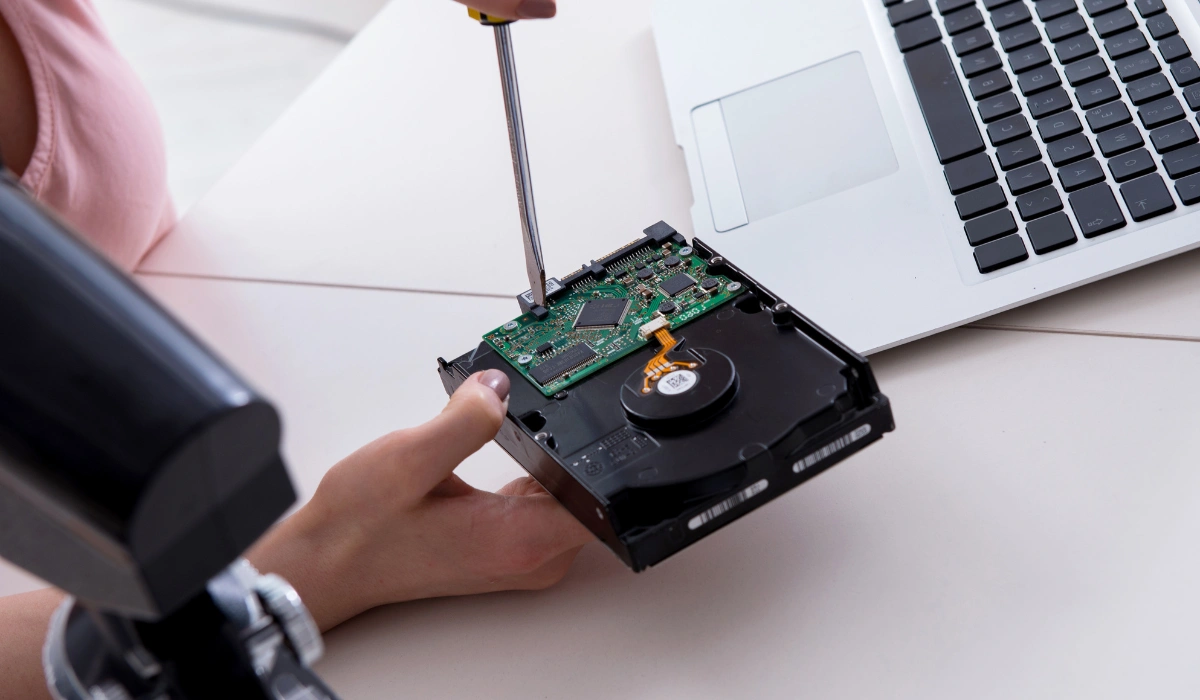
The hard disk drive (HDD) is the most traditional and well-known type of storage. These hard drives use one or more magnetic platters that spin at high speed (usually 5400 or 7200 RPM) and a read/write head that moves over them to access data. They are the equivalent of a high-tech record player.
- Advantages: Their main strength is the low cost per gigabyte. This makes them the ideal option for storing large amounts of data (photos, videos, documents) at a very affordable price. You can find a high-capacity internal hard drive for very little money.
- Disadvantages: Because they have moving parts, they are slower, consume more energy, generate more heat, and are much more fragile when hit or dropped.
- Recommended use: Mass storage of files that do not require immediate access, or as a secondary drive in a desktop computer.
SSD (Solid State Drive)
SSD drives use flash memory chips (similar to those in a USB flash drive or SD card) to store data. Unlike HDDs, SSDs have no moving parts, which represents a huge leap forward in performance and durability.
- Advantages: They are exponentially faster than HDDs. They drastically reduce operating system boot times, program loading times, and file transfer times. Furthermore, they are silent, more energy-efficient, and highly resistant to shocks. If you want to revitalize an older computer, improve your PC's speed with an SSD.
- Disadvantages: Their cost per gigabyte is higher than that of HDDs, although prices have dropped considerably in recent years.
- Recommended use: As the primary drive for installing the operating system and your most-used programs, guaranteeing a smooth and fast user experience.
You might be interested in: Differences between NVMe and SSD!
NVMe (Non-Volatile Memory Express)
Among SSDs, NVMe drives represent the most advanced technology. While traditional SSDs typically use the same connection interface as HDDs (SATA), NVMe drives utilize a high-speed interface called PCI Express (PCIe), the same one used by graphics cards. This allows them to achieve significantly faster read and write speeds.
- Advantages: They offer the highest possible performance, with speeds up to 5–6 times faster than a conventional SATA SSD. They are the best option for professionals and enthusiasts.
- Disadvantages: They are usually more expensive than SATA SSDs and require a motherboard compatible with this type of connector (M.2 PCIe).
- Recommended use: Extremely demanding tasks such as 4K/8K video editing, 3D rendering, large-scale data analysis, and high-end gaming.
Comparison table: HDD vs SSD vs NVMe
| Type | Speed | Price per GB | Durability | Ideal use |
|---|---|---|---|---|
| HDD | Low (mechanical disk) | Very low | Fragile (moving parts) | Mass storage and backups |
| SSD SATA | High (up to ~550 MB/s) | Medium | High (no moving parts) | Main drive: operating system and programs |
| NVMe | Very high (5-6× a SATA SSD) | Higher | High | Video editing, gaming and demanding tasks |
Hard drive classification by format
In addition to technology, storage drives can also be classified by their format and use. This is a simpler but equally important distinction when making your choice.
Internal hard drives
Internal hard drives are those installed inside the computer, whether it's a desktop or a laptop. They are essential for the computer's operation, as they house the operating system and all programs. They can be any of the three types of hard drives mentioned above: HDD, SATA SSD, or NVMe.
External hard drives
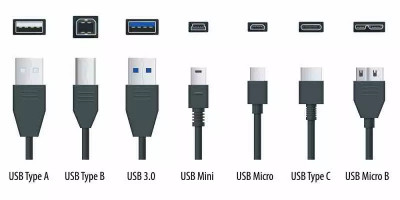
External hard drives are portable devices that connect to a computer via a USB port. They are the perfect solution for those who need to carry large amounts of data (photos, music, videos, projects) or to back up important information.
- External HDD drives: These are the most common and affordable type. They offer large storage capacities (several terabytes) in a portable format, ideal for backups and storing multimedia files.
- External SSD drives: These use the same technology as internal SSDs. They are more expensive, but much faster, smaller, and more shock-resistant. They are perfect for professionals who work on the go and need to transfer large files quickly.
Network Attached Storage (NAS) drives
A network attached storage (NAS) device connects not to a single computer, but to the entire local network via an Ethernet cable. This allows multiple users and devices (computers, mobile phones, smart TVs) to access the stored files from a central location.
- Recommended use: Ideal for small businesses that need to share files between employees, or for homes where you want to create a private cloud to store photos, videos, and documents accessible from any device connected to the network.
Now that you know all the hard drive types and their characteristics, you're better prepared to choose the option that best suits your needs, whether you're upgrading your current computer or making a new purchase. Don't hesitate to buy hard drives for your PC in our store and give your computer a speed or storage boost.