
 Laptops
 Desktop computers
 Ordenadores All-in-One
 Computer bundles
 Monitors
 Refurbished mobile phones
 Tablets
 Zone Apple
 Peripherals and Accessories
 Networks and Cables












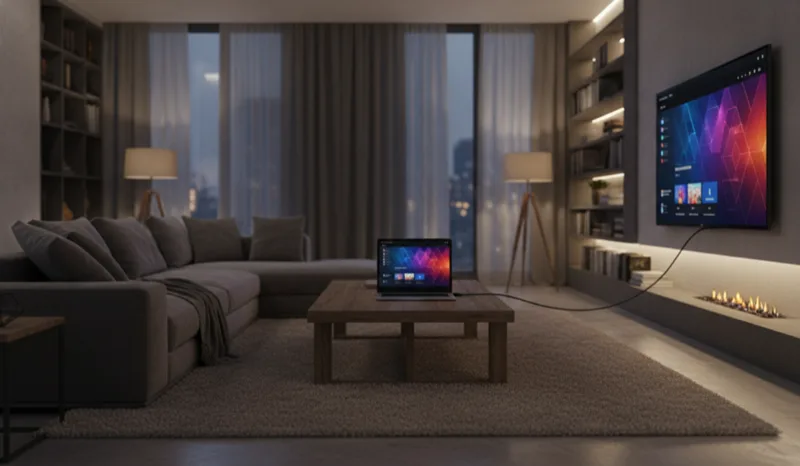
The quickest way to connect your laptop to a TV is with an HDMI cable: plug one end into the laptop, the other into the TV, select the right HDMI input with the remote and press Windows + P to choose whether to duplicate or extend your screen. If you'd rather go wireless, Miracast and Chromecast can send the picture over WiFi in a couple of minutes.
Watching a film, giving a presentation or gaming on the big screen doesn't require any technical knowledge: any modern laptop can be connected to a television or a monitor in several ways. In this guide we explain how to connect your computer to the TV step by step, with and without cables, and what to do when the picture or the sound doesn't show up right away.
Every way to connect a laptop to a TV or monitor
Before going into detail, this table sums up the available methods and when each one makes sense:
| Method | What you need | Best for |
|---|---|---|
| HDMI cable | An HDMI cable (and little else) | Films, games and presentations: the most reliable option |
| USB-C | A USB-C to HDMI cable or adapter | Modern laptops without an HDMI port |
| Miracast | Windows 10/11 and a compatible Smart TV | Mirroring your screen with no cables or extra devices |
| Chromecast / Google TV | A Chromecast plugged into the TV and the Chrome browser | Casting tabs, videos or your desktop over WiFi |
| VGA | A VGA cable or an HDMI-VGA adapter | Older TVs and laptops |
| AirPlay (Mac) | A MacBook and an Apple TV or a compatible Smart TV | Sending your Mac's screen to the TV wirelessly |
How to connect your laptop to the TV with an HDMI cable
HDMI carries video and audio through a single cable, is present on virtually every television made since 2005 and requires no software at all. Follow these steps:
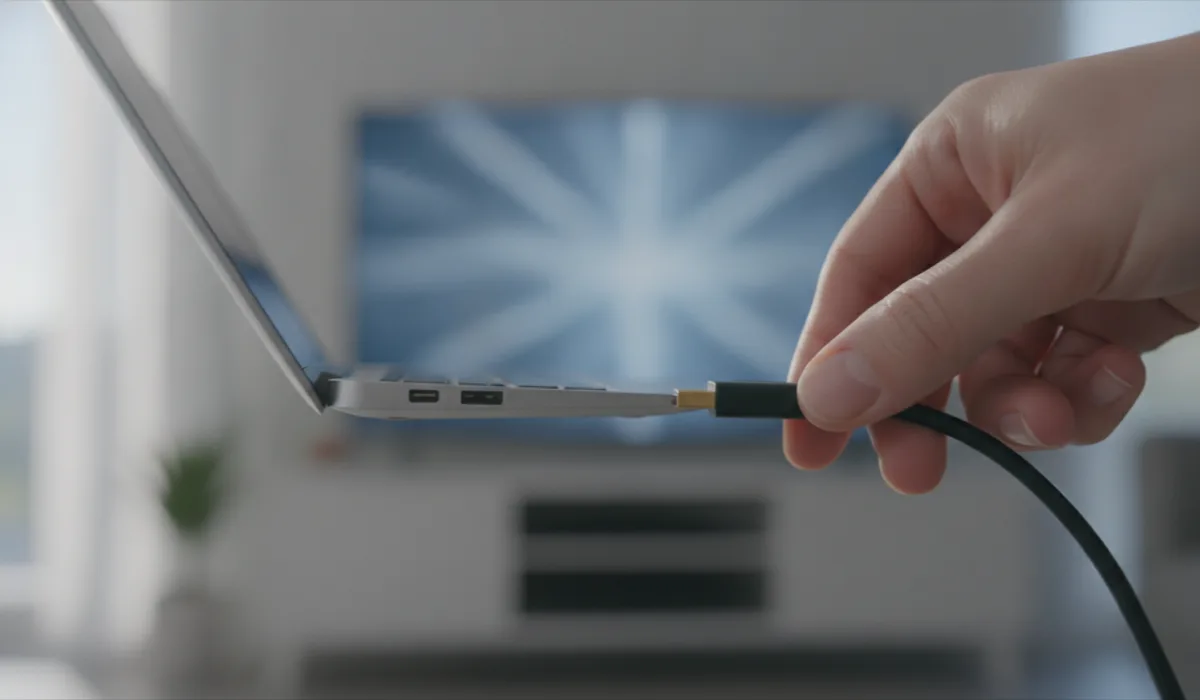
- 1. Find the ports. On the laptop, HDMI is a trapezoid-shaped connector on the side; TVs usually have two or three on the back, numbered (HDMI 1, HDMI 2...).
- 2. Plug in the cable at both ends. You can do it with everything switched on — there's no risk.
- 3. Select the source on the TV. Using the remote, press the Source or Input button and choose the HDMI number you plugged the cable into.
- 4. Adjust how it's displayed. On the laptop, press Windows + P and choose whether to duplicate or extend the screen (explained in the next section).
If the picture shows up but has black bars or is cut off at the edges, go into the TV's picture settings and look for "Fit to screen" or "Just scan" mode (depending on the brand): the TV will then display 100% of the pixels without cropping anything.
If your laptop only has USB-C
Many current ultrabooks have dropped the HDMI port. In that case you need a USB-C to HDMI cable or an adapter: most USB-C ports on modern laptops support video output (the so-called DisplayPort Alt Mode). The process is identical: connect, select the source and choose the display mode. You'll find both options in our cables and adapters section.
If your TV or laptop is older
Devices from before 2010 usually rely on VGA (the blue 15-pin connector). VGA only carries video, so the sound will keep coming out of the laptop unless you run it through a separate audio cable. If one of the two devices is modern and the other isn't, an HDMI-VGA adapter bridges the gap for very little money.
You might also like: Types of USB connectors: a complete guide!
How to mirror your screen on the TV (Windows + P)
Once connected, Windows lets you decide how to use the second screen. Press the Windows + P keys together and a side menu with four options will appear:
- PC screen only: the TV is ignored; useful for disconnecting without unplugging the cable.
- Duplicate: the television shows exactly the same as the laptop. This is the option for mirroring your screen on the TV when watching content or presenting.
- Extend: the TV becomes an additional desktop you can drag windows onto. Perfect for working with two screens.
- Second screen only: the laptop display switches off and everything moves to the television. The best choice for films and games, because the TV runs at its native resolution.
If the desktop looks blurry on the television, go to Settings > System > Display, select the TV and check that the resolution matches the TV's native one (3840 x 2160 on a 4K TV, 1920 x 1080 on a Full HD one).
How to connect your laptop to the TV wirelessly
If the television and the laptop are far apart or you simply don't want cables in the way, there are two main routes.
Miracast: the option built into Windows
Windows 10 and 11 ship with wireless casting via Miracast, compatible with most Smart TVs (Samsung, LG, Philips...). To turn it on:
- 1. Make sure the TV and the laptop are on the same WiFi network and that the TV's screen mirroring feature is enabled (Screen Mirroring, Screen Share or similar depending on the brand).
- 2. On the laptop, press Windows + K (or Settings > System > Display > Connect to a wireless display).
- 3. Select your television from the list and accept the connection on the TV.
Latency is somewhat higher than over a cable, so HDMI is still preferable for gaming; for video, photos and office work it performs perfectly well.
Chromecast and Google TV
If your television has Chromecast built in (or you've plugged one in), you can cast content from the Chrome browser: open the three-dot menu, choose "Cast" and select the TV. Chrome can cast a specific tab, a video or your entire desktop. It's the most convenient way to put YouTube or a website on the TV without touching a single cable.
How to connect a MacBook to the TV
If your laptop is a Mac, the options are the same — they just go by different names. For a wired connection, recent MacBook Pro models (2021 onwards) include an HDMI port again, so the same cable will do; MacBook Air and older models only have USB-C/Thunderbolt, so you'll need a USB-C to HDMI adapter.
Once connected, the equivalent of Windows + P lives in System Settings > Displays: from there you choose between mirroring your screen on the TV or using it as an extended desktop. And if the sound doesn't switch to the TV on its own, change it in System Settings > Sound by selecting the TV as the output device.
Going wireless? Apple's answer to Miracast is AirPlay: if you have an Apple TV or a compatible Smart TV (most recent Samsung, LG and Sony sets are), click the Control Centre icon in the menu bar, choose "Screen Mirroring" and select your TV. By the way: if you've been eyeing a Mac, our refurbished MacBooks come fully tested and with a warranty for far less than they cost new.
How to connect your laptop to a monitor
Connecting a screen to a laptop follows the same logic as with a television, with one difference: monitors usually also offer DisplayPort, a PC-oriented connector that supports higher refresh rates — something that matters if you game or want smoother motion. Use whichever cable matches the ports on both devices —HDMI or DisplayPort— and set the mode with Windows + P.
A very handy trick for remote work: connect the monitor, a keyboard and a mouse, and you can use the laptop with the lid closed as if it were a desktop. Just go to Windows power options and set "When I close the lid" to "Do nothing". If you don't have a second screen yet, our refurbished monitors section has options from compact sizes to ultrawide panels for far less than they cost new.
No sound coming from the TV: the fix
It's the most common problem: the picture appears, but the audio keeps playing through the laptop speakers. Windows doesn't always switch the sound output automatically. To fix it:
- 1. Click the speaker icon on the taskbar.
- 2. Click the arrow (or the name of the current output device).
- 3. Select the television from the list of output devices.
If the TV doesn't appear in the list, unplug and reconnect the HDMI cable with the source already selected, or check in Device Manager that your graphics driver is up to date.
Other common problems (and their solutions)
- The TV doesn't detect the laptop: try another HDMI port on the television, double-check that the selected source is the right one and, if it still doesn't show, force detection in Settings > System > Display > Detect.
- The picture flickers or drops out: it's usually the cable. Very long or damaged cables fail at high resolutions; a quality HDMI cable solves it in most cases.
- There's lag when moving the mouse: enable the TV's game mode, which switches off image processing and cuts latency noticeably.
- Text looks too small: in Settings > Display, increase the scale to 150% or 200% for the television.
What if you'd rather have a dedicated device for the TV?
If you connect your laptop to the television every day, it may be worth dedicating a device to the living room: a refurbished mini PC takes up less space than a book, hides behind the TV itself and turns any television into a full media centre. And if your laptop is already struggling to play full-screen video, take a look at our refurbished laptops: for the price of a new entry-level machine you get a higher-tier device, fully tested and under warranty.
You might also like: HDMI vs DisplayPort: differences and which to choose!


