
 Back-to-School Offers
 Laptops
 Desktop computers
 Computer bundles
 Ordenadores All-in-One
 Monitors
 Refurbished mobile phones
 Tablets
 Zone Apple
 Peripherals and Accessories
 Networks and Cables












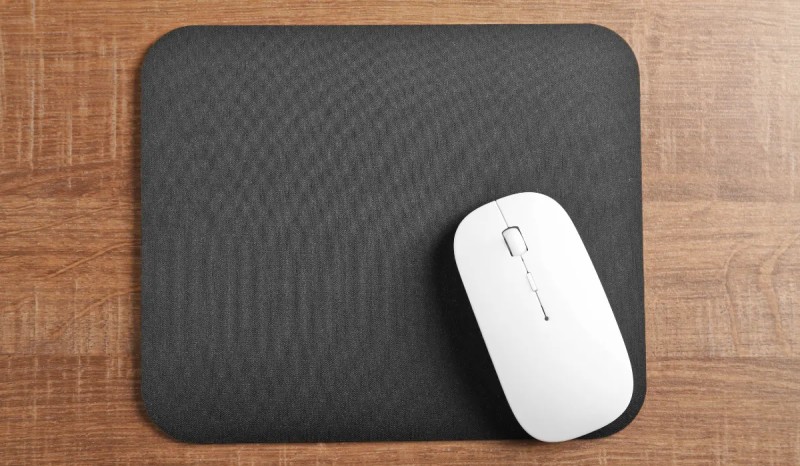
Tired of cables restricting your movement and cluttering your desk? Connecting a wireless mouse is one of the simplest and most satisfying upgrades you can make to your workspace, study area, or gaming setup. Going wireless gives you more freedom and a much cleaner environment.
Whether you have a laptop or a desktop computer, this guide will explain step-by-step how to quickly and easily install and configure your wireless mouse. There are two main types of wireless connection, and the process varies slightly between them. Let's look at both methods!
Before we begin: quick checks
Before connecting your new peripheral, make sure of two fundamental things to avoid problems:
- Power: It seems obvious, but it's the most common problem. Check that your mouse has fresh batteries or a fully charged battery. Most mice have an LED that flashes red or orange to indicate a low battery.
- Connection type: Check the box or the bottom of your mouse. Does it come with a small USB receiver (also known as a "dongle") or does it connect directly via Bluetooth? This will determine which method you should use.
Method 1: How to connect a wireless mouse with a USB receiver
This is the most common, simple, and universal method, known as "Plug and Play." It's the ideal option if you're looking for an immediate and hassle-free installation, perfect for any type of computer.
Step 1: Insert the USB receiver into your computer
Locate the small USB receiver that came with your mouse (sometimes it's stored in a compartment inside the mouse itself, next to the batteries). Connect it to a free USB port on your laptop or desktop PC. The operating system will detect it instantly.
Step 2: Turn on the mouse
Locate the power switch, which is usually on the bottom of the mouse. Slide it to the "ON" position. On many models, you'll see a light (usually red or blue) flash briefly to indicate that it's on.
Step 3: Done! The magic of plug and play
Wait a few seconds. Your computer, whether it's running Windows or macOS, will automatically recognize the device and install the necessary generic drivers without you having to do anything. You might see a notification in the corner of your screen saying "a device is being set up," and shortly after, that "the device is ready to use." It's that easy to set up a wireless mouse with this technology!
Tip: If the cursor isn't moving, try connecting the receiver to a different USB port. Sometimes, the front ports on a computer case or external USB hubs can cause problems. Use a rear port connected directly to the motherboard to ensure a good connection.
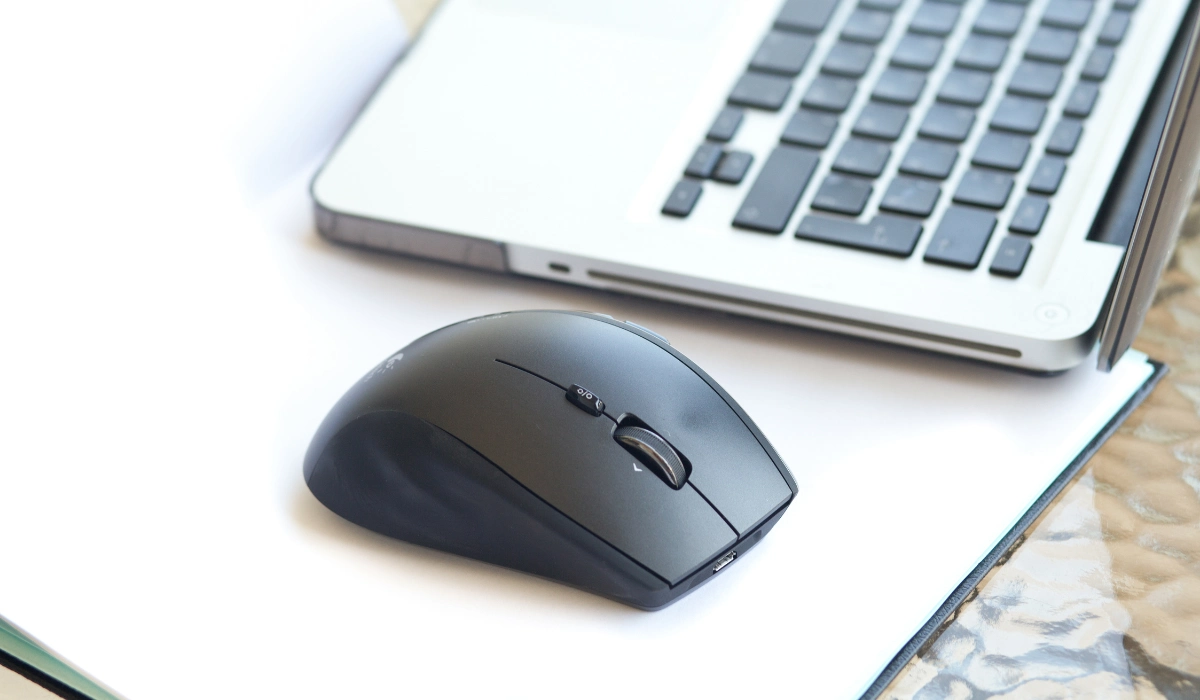
You might be interested in: How to connect wireless devices to your PC!
Method 2: How to connect a wireless mouse via Bluetooth
If you've bought a Bluetooth mouse and your computer already has this technology (most modern laptops and many desktop PC motherboards include it), you can connect it without using a receiver, thus freeing up a USB port.
Step 1: Activate pairing mode on your mouse
First, turn on the mouse using its power switch. Then, look for a specific connection or pairing button (sometimes indicated by the Bluetooth symbol). On other models, you may need to press and hold the power button for a few seconds. You'll know it's working because an LED light will start flashing rapidly (usually blue). This means the mouse is "discoverable" and ready to be paired.
Step 2: Activate Bluetooth on your computer
Now, go to your operating system settings:
- In Windows 10/11: Go to
Start > Settings > Bluetooth & devices. At the top, make sure the Bluetooth switch is turned on. - On macOS: Go to the
Apple menu > System Settings (or System Preferences) > Bluetoothand make sure it's turned on.
Step 3: Pair the mouse from the operating system
With the Bluetooth settings window open, the process is very intuitive:
- Click on "Add Device" (on Windows) or simply wait for your Mac to scan automatically.
- Your computer will begin searching for nearby devices. In a few seconds, your mouse should appear in the list of found devices (for example, "Logitech MX Master" or "Mouse BT 5.0").
- Click on your mouse's name in the list and select "Connect" or "Pair".
After a few seconds, the connection will be established, the mouse light will stop flashing, and you can start using your wireless mouse. The operating system will remember the device, so next time you only need to turn on the mouse and it will connect automatically.
Troubleshooting and frequently asked questions
What is the difference between a mouse with a USB receiver and a Bluetooth mouse?
A mouse with a USB receiver uses a dedicated radio frequency (RF) connection that offers a very fast and stable response, ideal for gaming. A Bluetooth mouse connects directly to your PC, saving a USB port and is very convenient for laptops, although it may have slightly higher latency.
Do I need to install additional drivers or software?
For basic use, no. Windows and macOS automatically install generic drivers. However, if you've purchased a high-end mouse (gaming, ergonomic, etc.), it's highly recommended to install the manufacturer's official software. This will allow you to configure the wireless mouse, customize additional buttons, adjust sensitivity (DPI), or manage RGB lighting.
My wireless mouse isn't working — what can I do?
- Step 1: The basics. Check the batteries. It seems simple, but it's the cause of 90% of problems.
- If using a USB receiver: Try a different USB port. Keep it away from other devices that might cause interference, such as external hard drives.
- If using Bluetooth: Make sure your PC's Bluetooth is enabled. Go to your Bluetooth settings, remove the mouse from the list of saved devices, and repeat the pairing process from scratch.
With these simple steps, you now know how to connect a mouse to a laptop or desktop computer without any problems. If you're looking for the perfect model for you, you can find a wireless mouse for your computer or even practical keyboard and mouse combos in our store.


