 Laptops
 Desktop computers
 Ordenadores All-in-One
 Computer bundles
 Monitors
 Refurbished mobile phones
 Tablets
 Zone Apple
 Peripherals and Accessories
 Networks and Cables






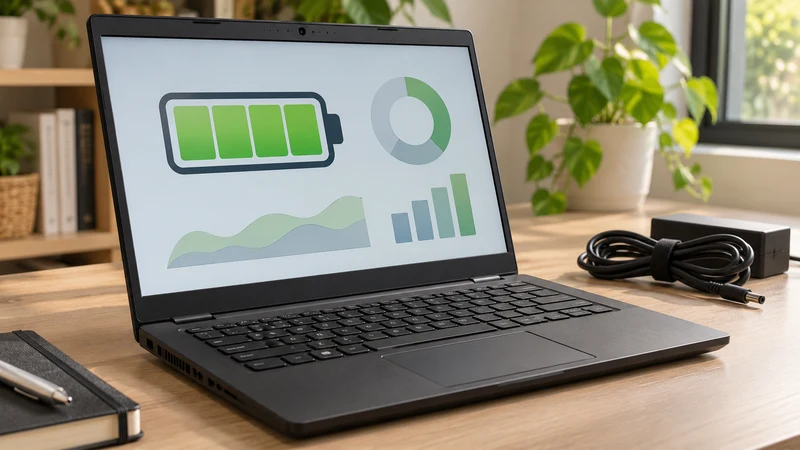
A laptop reaching 100% charge does not mean its battery still holds as much energy as when it was new. That percentage describes how full the available battery is. To understand shorter runtime, consider both its estimated capacity and how you use the computer.
This guide covers Windows 11. The report helps inform a review; it does not certify the condition of a computer or define the warranty terms of a refurbished laptop.
Generate the report without installing an app
- Search for Command Prompt in Start and select Run as administrator. Accept the Windows prompt.
- Enter
powercfg /batteryreportand press Enter. - Copy the path of the HTML file shown in the result and open it in your browser.
The location can vary, so follow the path returned by the command. Microsoft documents the procedure in its Windows battery guidance. You do not need a third-party utility or to drain the battery to generate the report.
Compare these two capacities
Under Installed batteries, find Design Capacity and Full Charge Capacity, the estimated capacity when fully charged. Dell explains the comparison in its battery report guide.
Calculate an approximate reference:
Relative capacity = full charge capacity ÷ design capacity × 100.
Fictional example: 42,000 mWh divided by 56,000 mWh gives 75%. The difference from design capacity is 25%. This does not mean exactly three quarters of the original runtime remain, or that the laptop needs replacing.
Use matching units. If several batteries appear, compare each with its own design capacity. Do not treat missing data as zero.
Relate the report to your actual work
Check Battery capacity history for changes over time and Battery life estimates for estimated runtime. Those estimates are not a promise. One report does not replace the manufacturer's diagnostic tools either.
Alongside it, record a typical work session: starting and ending charge, duration, brightness and open applications. Repeat on another day with similar tasks. Comparing equivalent sessions is more useful than comparing a video call with an afternoon of reading documents.
A simple entry might be: “90 minutes, browser and documents, fixed brightness, from 80% to 55%.” This is an example record, not an expected runtime for our computers.
Decide what to do next
If runtime no longer covers your working day, gather the exact model, report and observations before enquiring about a replacement. Do not choose a battery by appearance or brand alone: confirm the compatible part number with the manufacturer or a technician.
If you notice swelling or deformation, stop using the device and seek assistance. Do not press or puncture the battery. Microsoft includes this warning in the documentation above. Repeatedly draining it to zero will not restore lost capacity.
What to keep when asking for help
- Exact laptop model and report date.
- Design and full charge capacities, including units.
- Observed runtime and tasks performed.
- Unexpected shutdowns, charging warnings or other symptoms.
Before sharing screenshots, check computer names and other identifiers. To inspect the rest of your laptop, use our first-day checklist. Concrete observations make it easier to decide whether you need diagnostics, different usage habits or a replacement battery.