 Back-to-School Offers
 Laptops
 Desktop computers
 Computer bundles
 Ordenadores All-in-One
 Monitors
 Refurbished mobile phones
 Tablets
 Zone Apple
 Peripherals and Accessories
 Networks and Cables













Processor compatibility with the motherboard is one of the most critical aspects when building or upgrading a PC. A poor choice can result in components that don't work together and, in the worst-case scenario, wasted money. In this comprehensive guide, we'll explain step-by-step how to determine if your processor is compatible with your motherboard so you can avoid any mistakes.
Whether it's for your laptop or desktop computer, understanding PC component compatibility will not only save you time and frustration, but also allow you to make informed decisions when upgrading your system. From identifying the CPU socket to verifying the chipset and BIOS version, we'll cover all the essentials you need to know to make your project a success.
1. The two pillars of compatibility: socket and chipset
Before asking yourself "what processor does my motherboard support?", you need to understand two fundamental concepts that determine 90% of compatibility: the socket and the chipset.
What is the CPU socket and why is it crucial?
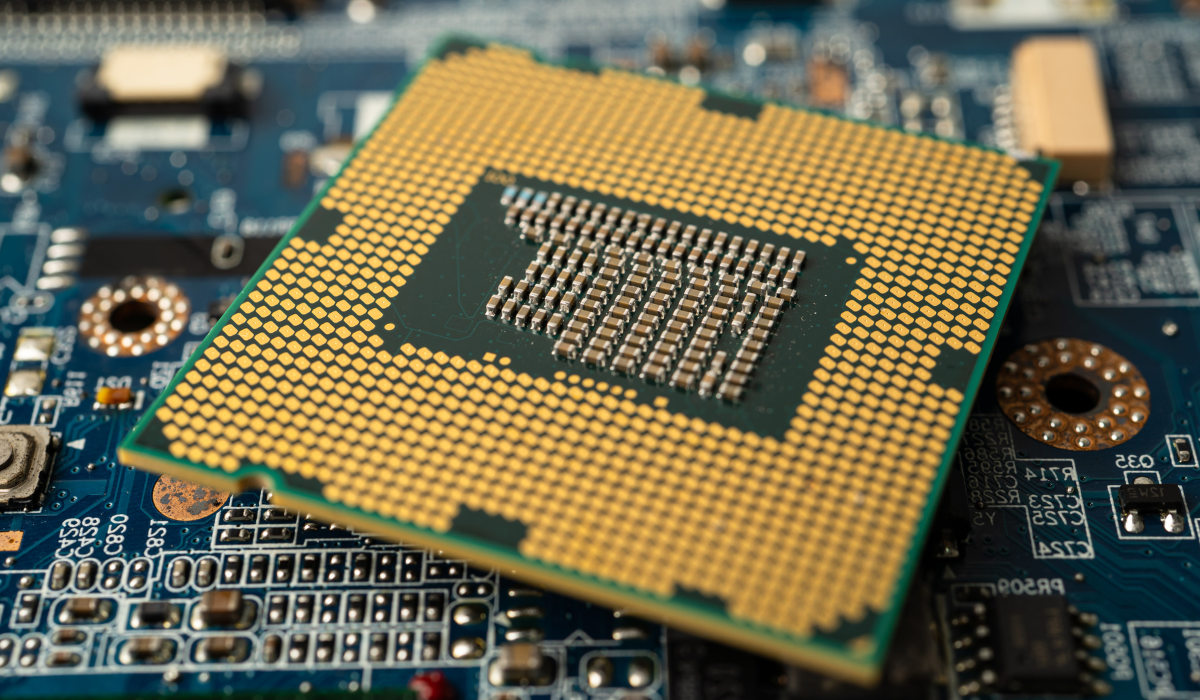
The CPU socket is, literally, the physical connector where the processor is installed on the motherboard. Each processor family uses a specific socket type, and the motherboard must have the exact same socket for them to fit. It is impossible to physically install a processor in the wrong socket.
Furthermore, Intel and AMD use completely different socket standards that are not interchangeable. For example, Intel's most common sockets in recent years have been LGA 1200 and LGA 1700, while AMD has popularized AM4 and AM5. Therefore, the first step is always to ensure that both the motherboard and the processor you want to pair are from the same brand and use the same socket.
The role of the chipset in compatibility
Ensuring the socket matches is the first step, but not the only one. The motherboard chipset is the set of integrated circuits that acts as the communication hub. It determines which features and processor generations are compatible, even if they share the same socket.
For example, within the same AMD AM4 socket, there are different chipsets (such as A320, B450, and X570). A Ryzen 5000 processor might physically fit in a motherboard with an A320 chipset, but it may not work or may only work with limitations if the motherboard doesn't have a specific BIOS update to support it. Therefore, it's crucial to know if a processor is compatible with the motherboard not only by checking the socket but also by verifying the chipset's compatibility list.
2. How to identify your PC's current hardware
Before buying anything, you need to know what you already have. Determining if your PC components are compatible starts with identifying your motherboard and current processor.
Methods to find out what motherboard you have
The question "how do I find out my PC's motherboard?" is fundamental. In Windows, the simplest method is to use the "System Information" tool:
- Press the Windows + R keys to open the "Run" dialog box.
- Type "msinfo32" and press Enter.
- In the window that appears, look for the lines "Motherboard Manufacturer" and "Motherboard Product". There you will find the exact name.
Another very popular option is to use the free software CPU-Z. In the "Mainboard" tab, you'll find all the detailed information about your motherboard, including the manufacturer, model, and chipset.
How to identify your current processor
Knowing what processor you have is just as important. In Windows 10 and 11, the quickest way is:
- Right-click on the Start menu and select "System".
- In the "Device Specifications" section, you will see the full name of your processor.
Knowing the exact model will allow you to look up its specifications, such as the socket it uses, and will give you a basis for comparing whether the upgrade you're planning is really worth it.
You might be interested in: Types of computer motherboards!
3. Online tools and resources to check compatibility
Fortunately, you don't have to do all the research manually. There are excellent online tools that make the process much easier.
- Motherboard manufacturer websites: This is the most reliable source. Go to your motherboard manufacturer's website (ASUS, Gigabyte, MSI, ASRock, etc.), find your exact model, and go to the "Support" or "CPU Support List" section. There you will find a detailed list of all compatible processors and the minimum BIOS version required for each one.
- PCPartPicker: This is one of the best web-based tools for building a PC. It allows you to choose components and automatically alerts you if there are any known incompatibilities between them, whether it's socket, chipset, or even physical size.
- Intel and AMD websites: Both Intel ARK and AMD's website have databases where you can check the specifications of each processor, including the socket they use.
4. Step-by-step process to find out which processor your motherboard supports
Now that you have all the information, let's put it all together into one clear process.
- Identify your motherboard: Use "msinfo32" or CPU-Z to find out the exact manufacturer and model.
- Find the CPU support list: Go to your motherboard manufacturer's website, find your model, and locate the list of compatible processors ("CPU Support List").
- Compare the processors: Review the list and see which processors are compatible. This will give you a clear idea of how far you can upgrade without changing your motherboard. For example, you could go from an i3 to a desktop PC with an i5 or even an i7 of the same generation.
- Check your BIOS version: The manufacturer will indicate the minimum required BIOS version in that same list. You can check your current version in CPU-Z (Mainboard tab) or by restarting your PC and entering the BIOS. If your version is older, you will need to update it before installing the new processor.
5. Other compatibility factors to consider
Although the socket and chipset are the main things, there are other details that you shouldn't overlook.
- Power Supply: A more powerful processor typically consumes more power. Make sure your power supply unit (PSU) has sufficient wattage and the necessary CPU power connectors.
- Cooling (Heat Sink): A high-end processor generates more heat. Check that your current heat sink can handle the TDP (Thermal Design Power) of the new processor. Otherwise, you'll need a more efficient cooling system.
- RAM: Different generations of processors may require different types of RAM (DDR3, DDR4, DDR5). If you change your platform (motherboard + processor), you will most likely also need to buy new RAM modules.
By following this guide, the process of determining if your processor is compatible with your motherboard becomes a methodical and reliable task. Taking the time to research will guarantee a successful upgrade and optimal performance for your computer.