
 Back-to-School Offers
 Laptops
 Desktop computers
 Computer bundles
 Ordenadores All-in-One
 Monitors
 Refurbished mobile phones
 Tablets
 Zone Apple
 Peripherals and Accessories
 Networks and Cables












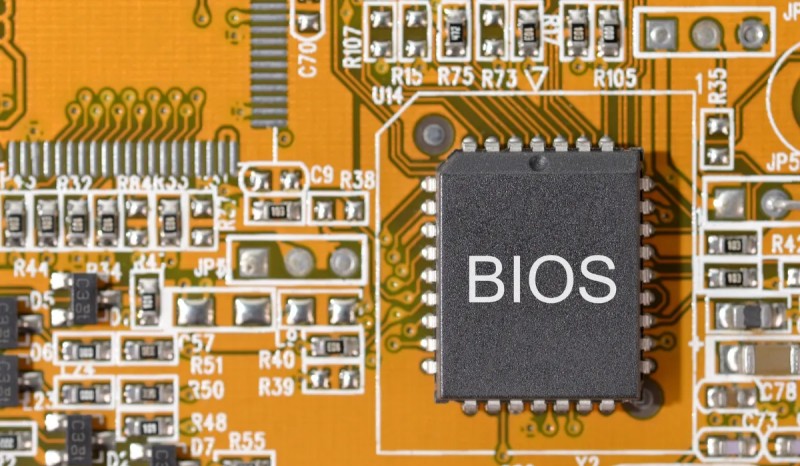
Wondering how to update your PC's BIOS? You've come to the right place. While it might sound like a technical and risky task, updating your motherboard's firmware is a simple and safe process if you follow the right steps. In this guide, we'll explain everything you need to know.
Knowing how to update the BIOS (or UEFI, on more modern systems) is a fundamental skill for any computer enthusiast. This process is key to ensuring maximum compatibility with new hardware, improving system stability, and protecting yourself against security vulnerabilities.
Why and when should you update your BIOS?
Before you begin the process, it's important to understand why you're doing it. Updating isn't always necessary, but here are the main reasons why a BIOS update is recommended:
- Support for new hardware: This is the most common reason. An update allows your motherboard to recognize newer processors (CPUs), faster RAM modules, or next-generation storage drives.
- Performance and stability improvements: Manufacturers often release updates that optimize memory management, improve compatibility with certain devices, and increase overall system stability.
- Bug fixes: Fixes specific bugs detected in previous versions that can cause crashes or strange behavior.
- Security patches: Closes firmware-level security gaps that could be exploited by malware or external attacks.
Essential preparations before updating your PC's BIOS
Preparation is 90% of the success in this process. A failure during the update can be critical, so you must ensure you complete the following preliminary steps:
- Identify the exact model of your motherboard: You need to know the manufacturer (ASUS, GIGABYTE, MSI, ASRock, etc.) and the precise model number. The easiest way is to use a free program like CPU-Z. You'll find all the necessary information in the "Mainboard" tab.
- Download the correct BIOS file: Only access the official website of your motherboard manufacturer. Go to the "Support" or "Downloads" section, find your exact model, and download the latest stable BIOS version. Never use files from unofficial sources!
- Prepare a USB flash drive: You will need an empty flash drive. It is crucial that you format it in FAT32 format, as this is the file system that most BIOSes can read.
- Ensure a stable power supply: This is the most important point. Do not perform the update if there is a risk of storms or power outages. If it's a laptop, make sure it's plugged into a power outlet and has a charged battery. A power interruption is the leading cause of serious failures.
How to update your PC's BIOS step by step (universal and safe method)
The safest method, and the one recommended by all manufacturers, is to perform the update directly from the BIOS/UEFI interface. This avoids potential interference from the Windows operating system.
Step 1: Prepare the BIOS file on the USB drive
Once you've downloaded the file (usually a .zip) from the manufacturer's website, extract it. Inside, you'll find a file with an extension like .CAP, .ROM, .F32, or similar. Copy only this update file to the root directory of your FAT32-formatted USB drive (i.e., don't put it inside any folder).
Step 2: Restart your computer and access the BIOS/UEFI
With the USB drive already connected to a USB port on your computer, restart it. Just as the screen turns on, before the Windows logo appears, repeatedly press the BIOS access key. The most common keys are:
- Supr (or Del)
- F2
- F10 or F12 (on some brand-name computers like HP or Dell)
If you're unsure, consult your motherboard manual or search on Google: "how to enter BIOS [your motherboard model]".
You might be interested in: How to know if my processor is compatible with my motherboard!
Step 3: Look for the update utility (flash tool)
Once inside the BIOS interface (which nowadays is usually a UEFI graphical interface with mouse support), you need to locate the update tool. The name varies depending on the manufacturer:
- ASUS: EZ Flash
- GIGABYTE: Q-Flash
- MSI: M-Flash
- ASRock: Instant Flash
You will usually find it in a section called "Tools", "Advanced", or sometimes as a button directly accessible in easy mode or "EZ Mode".
Step 4: Start the update process from the USB drive
When you run the flashing utility, the system will prompt you to browse your storage devices. Select your USB flash drive and then the BIOS file you copied. The system will ask for final confirmation before starting. Accept it.
Step 5: Wait patiently and don't touch anything at all
The flashing process will now begin. You will see a progress bar indicating how the update is progressing. This is the most critical moment.
- DO NOT turn off the computer.
- DO NOT restart the computer.
- DO NOT remove the USB flash drive.
- DO NOT press any key.
Step 6: Automatic restart and final configuration
When the update is complete, your PC will restart automatically. It's normal for this first boot to take a little longer than usual while the system reconfigures itself. After the restart, it's highly recommended that you enter the BIOS again and look for an option called "Load Optimized Defaults". This ensures that the new BIOS starts with a stable configuration. Finally, save the changes and exit.
Congratulations! You have successfully and safely updated your PC's BIOS. Your computer is now ready to take full advantage of its components, just like one of our updated and ready-to-use desktop computers.


