 Laptops
 Desktop computers
 Ordenadores All-in-One
 Computer bundles
 Monitors
 Refurbished mobile phones
 Tablets
 Zone Apple
 Peripherals and Accessories
 Networks and Cables






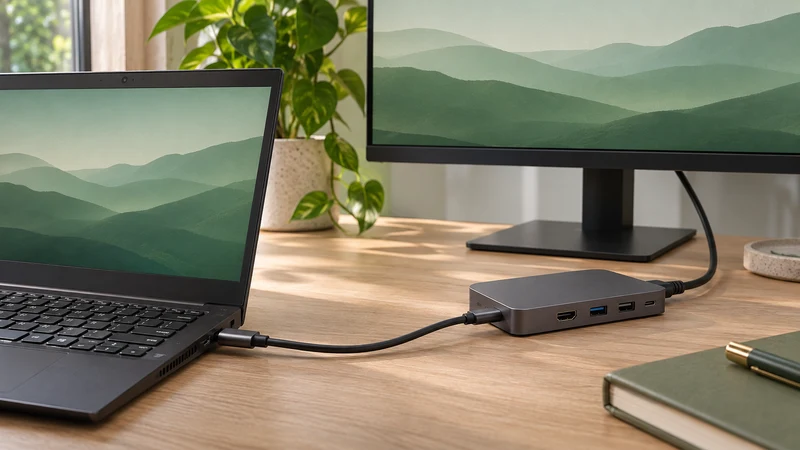
Two USB-C ports can look identical and offer different functions. Before buying a dock or adapter, answer three separate questions: does it transfer data, output video and accept power for the laptop?
Being able to charge a phone from a port does not confirm that the computer accepts charging through it. A working external drive does not prove video output either.
Start with the exact model and its manual
Find the full laptop model on its label or in system information. Open the manufacturer's specification sheet and locate the connections section. Check each port separately: ports on the same computer may have different functions.
USB-C names the connector. USB-IF separates this name from data and power capabilities in its USB Type-C guidelines. Do not infer every function from the shape or a transfer speed figure.
For a monitor, look for video output
For a typical USB-C to HDMI or DisplayPort adapter, confirm a compatible video output such as DisplayPort Alt Mode. The DisplayPort documentation on USB-C explains how this mode carries video through the connector.
The cable and adapter must also support your desired resolution and refresh rate. “4K” alone does not tell you whether a combination works at 30 or 60 Hz. If a laptop advertises Thunderbolt or USB4, still check the specific capabilities of the model and dock.
Some docks generate video using technologies that require their own drivers. Check their requirements: they are not equivalent to an adapter using the port's native video output.
For laptop charging, confirm input and power
Look for an explicit statement that the laptop can charge over USB-C, together with its accepted power specifications. Check the charger's output on that port and the cable's rating. USB Power Delivery negotiates power between compatible devices; its presence does not make every combination suitable. See the USB-IF explanation of Power Delivery.
For a dock, distinguish its power supply rating from the power it delivers to the computer. With multiple devices on a multiport charger, also check how power is shared.
When shopping, write down what your laptop requires and compare it with the dock's output to the computer. The largest number on the box is not a substitute for that check.
Picture but no charging? Test one part at a time
Microsoft recommends checking the port, charger and cable for charging problems, and the video connection chain for display problems, in its USB-C troubleshooting guide.
First test a compatible charger directly in the designated port. Then test the monitor with a suitable cable and adapter, selecting the correct display input. Add the dock last. Changing one item at a time helps locate the incompatible link.
Checklist before buying
- Exact model and functions of the port you will use.
- Documented video output and desired resolution/refresh rate.
- Supported charging input and laptop power requirements.
- Cable supporting video and/or charging as needed.
- Power the dock actually delivers to the computer.
To extend your workspace, continue with our guide to connecting two monitors to a laptop. Keep the model references for laptop, dock, cable and display: they are more useful for confirming compatibility than a photo of the connector alone.